# Exercise: Click Counter

*Note: We will use the same HTML page we have been using. I'll refer to it as `clicker.html`.*

In this section, we'll make a simple page that has a button and a counter. Each time the button is clicked, the value of the counter is incremented. We'll use the same page we have been using before.

## Set up the html file

Set up the html file such its body contains at least the following two items:

* a button with an id
* a text element of your choice also with an id

An example is below:

```html
<body>
    <p id="counter">0</p>
    <button id="trigger">Click me</button>
</body>
```

You can have other elements and other styling to make it nicer, but that is up to you.

## The script

### Adding an event listener

Add an event listener to the `script.js` file that listens for the DOM content to be loaded, upon which it adds an event listener to the button. Here's how that looks:

```js
document.addEventListener("DOMContentLoaded", function() {
    let button = document.getElementById("trigger");
    button.addEventListener("click", updateCounter);
});
```

`updateCounter` is the function that we will use to update the counter on the page.

### `updateCounter` function

Inside this function we need to do the following:

1. Get the counter element from the page
2. Get its text value
3. Increment it by 1
4. Set the counter element's inner value to the new value

Try doing this yourself before looking at the code below.

{% hint style="info" %}
Note that an element's inner text is always returned as a string, so you need to convert it to an integer. This can be done with the `parseInt` function:

```js
parseInt("4324"); // returns 4324
```

{% endhint %}

```js
function updateCounter() {
    // query for the element
    let counterElement = document.getElementById("counter");
    // get the counter value
    let count = parseInt(counterElement.innerText);
    // increment the counter value
    count++;
    // set the counter value
    counterElement.innerText = count;
}
```

### Test it out

That's all we had to do. Now, test out the code by saving all files, reloading the page, and then clicking the button. The counter value should get incrememented:
<figure><img src="https://2807223923-files.gitbook.io/~/files/v0/b/gitbook-x-prod.appspot.com/o/spaces%2FTUqAJOgHs57S8lmqdxRV%2Fuploads%2Fgit-blob-4903445f895f12c0cdf8fcb5ac6788ff6c52cdca%2Fcounter.gif?alt=media" alt=""><figcaption></figcaption></figure>

## Bonus (try it yourself)

Try adding the following features:

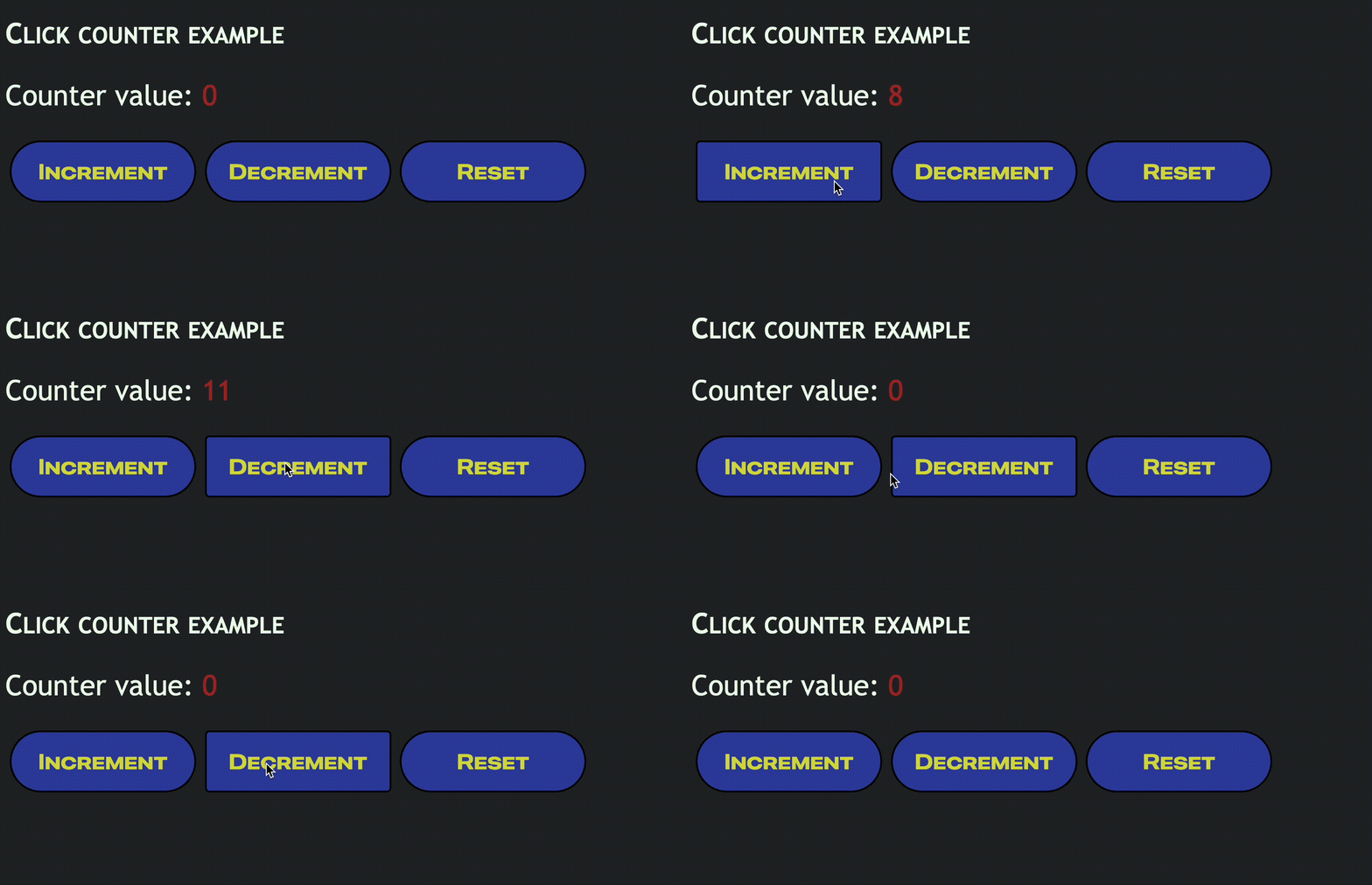
1. When the counter value reaches a non-zero multiple of 10, its font color should change to gold, and set back to original color otherwise
2. Add a second button that resets the counter variable to 0
3. Add a third button that decrements the counter, but no longer decreases after reaching 0.

<figure><img src="https://2807223923-files.gitbook.io/~/files/v0/b/gitbook-x-prod.appspot.com/o/spaces%2FTUqAJOgHs57S8lmqdxRV%2Fuploads%2Fgit-blob-eceac7e78cd5caa343b389e4762b6608a6a03918%2Fcounter-bonus.gif?alt=media" alt=""><figcaption></figcaption></figure>

A sample solution can be found [here](https://github.com/Dinoman44/Orbital2024-JS-example-problems-code/tree/main/click-counter).

## Next steps

Next we'll look at how elements can be created or removed in a page.
