> For the complete documentation index, see [llms.txt](https://wiki.nushackers.org/llms.txt). Markdown versions of documentation pages are available by appending `.md` to page URLs; this page is available as [Markdown](https://wiki.nushackers.org/orbital/readme-1/dom/query-dom2.md).
# Querying the DOM - Element Attributes
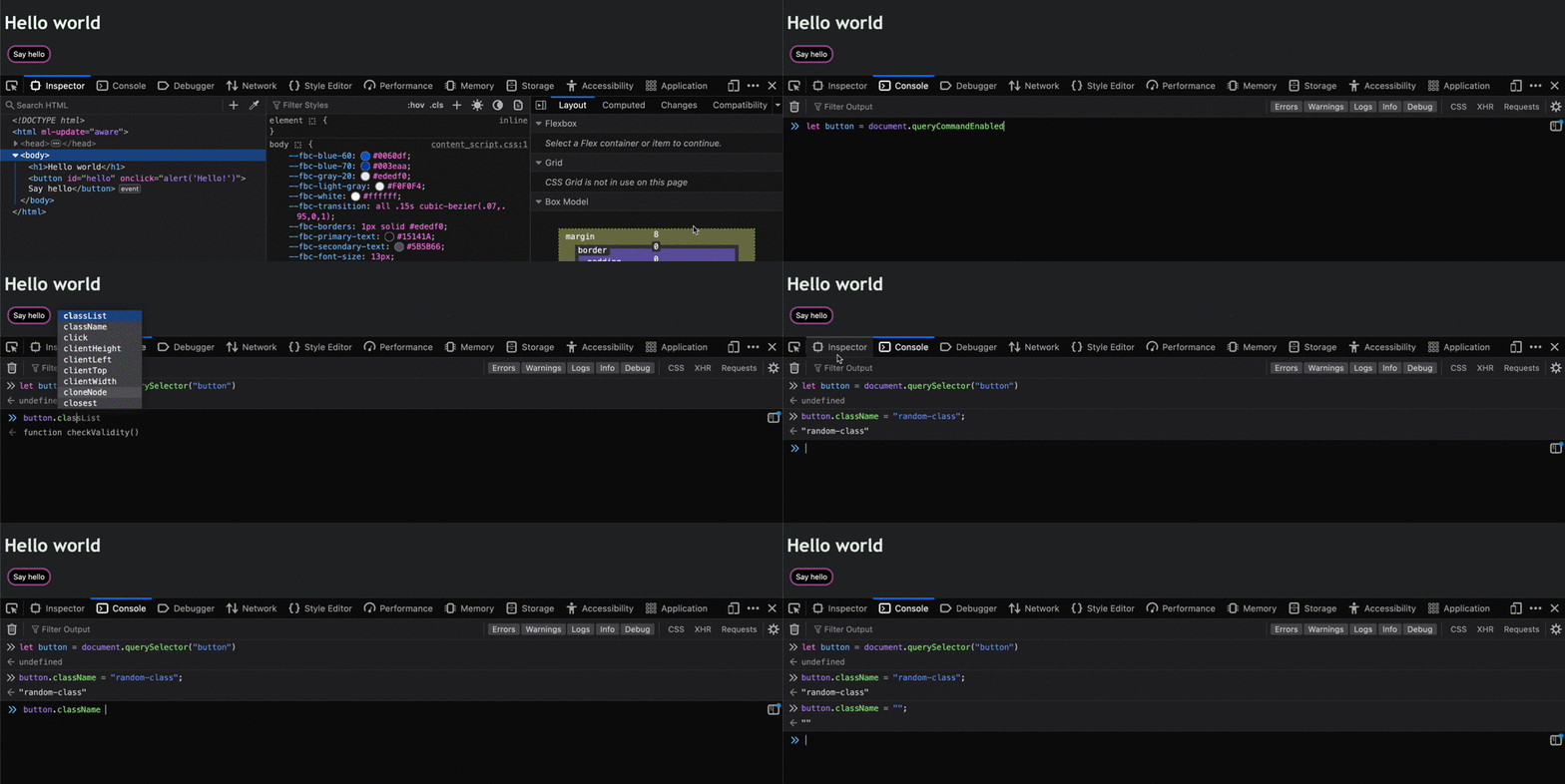
Open up the html page you made [earlier](/orbital/readme-1/dom.md). Open it in the browser, and open the browser console. We're going to query the document for elements and change their attributes, then see the changes in real-time.
## Pick an element
Our page currently only has two things: a heading and a button. So lets pick one of them. Run the following in the console:
```js
let button = document.querySelector("button");
```
Now, `button` has the button element assigned to it. Test it by typing `button` and hitting enter in the console; you should see something like below:
## Check its attributes
To get an element's properties or attributes, we can use dot notation:
```js
button.onclick; // function onclick(event)
```
The above line returns the value of the `onclick` attribute, which is a function. To make things more interesing, let's go to the html file and add an id attribute:
```html
```
Reload the page, reopen the console and rerun the above lines to select the button (this time try using the id as a selector instead).
Then run:
```js
button.id; // "hello"
```
This should return "hello", since that is the id we assigned the button.
### In general...
Given that you have a variable `element` that has been assigned an element after querying the DOM, you can access any of its attributes using dot notation:
```js
element.attributeName; // returns attribute value
```
If the element has not been assigned a given attribute it returns an empty string, or if the attribute is invalid it returns `undefined`
Example: running the following should return `""` since the button has no class:
```js
// the class attribute uses .className, not .class
button.className; // ""
button.class; // undefined
```
Some attributes have default values, such as the `hidden` attribute which is `false` by default:
```js
button.hidden; // false
```
## Changing its attributes
Just as an element's attributes can be accessed by JS code, they can also be changed by reassigning them values. Let's try this on our button.
### Changing the class
Run the following (after querying for the button if needed):
```js
button.className = "random-class"; // feel free to plug in your class name
```
You won't see any visual change on the page (since the class doesn't affect its appearance) but if you navigate to the Browser Inspector and look for the button, you'll see that it has been assigned a `class` attribute. You can even remove the attribute if you wish:
```js
button.className = "";
```
To visualise the change in a better way, try these steps:
1. Go to your CSS file and add some rules for a class "random-class" (or whatever you want to call it)
2. Refresh the page, reopen the console, and query for the button
3. Assign the button a class attribute as above, with the class being "random-class" (or whatever you called it)
4. You'll see the CSS being applied to the button
5. Reset the class attribute back to blank. You'll see that the styling no longer applies.
### Hiding the button
To hide the button (or any element really) just set its `hidden` attribute to `true`:
```js
button.hidden = true;
```
You'll see the button disappear from the page. To make it reappear, set the `hidden` attribute back to `false`:
```js
button.hidden = false;
```
### In general...
Any element's (valid) attributes can be assigned or reassigned to any (valid) value by accessing them using dot notation after querying for the element. If an invalid attribute or invalid value is assigned, then it is simply ignored by the page.
{% hint style="warning" %}
If there is no match for the element query, `null` is returned by the `querySelector` and `getElementById` functions. this means that trying to get/reassign any attributes will cause an `Uncaught TypeError: x is null`.
{% endhint %}
## Contents of an element
There are two ways to get the content of an element. One is to use to `.innerHTML` property:
```js
button.innerHTML; // "Say Hello"
```
And the other is to use the `.innerText` property
```js
button.innerText; // "Say Hello"
```
The difference between the two is that `innerHTML` refers to *everything* inside the element, whereas `innerText` refers to just the text inside the element. In our example there is no difference, but let's try editing our html file temporarily:
```html
```
Now we have a `` element inside the button; a `` is just an easy way of encapsulating part of a line so specific styling can be added to it.
Now try getting the contents:
```js
let button = document.getElementById("hello");
button.innerHTML; // "Say Hello" with some whitespace around it
button.innerText; // "Say Hello"
```
You can change the contents as well by reassigning the properties.
## Next steps
Next, we'll look at how you can modify the style of an element using JS.


 {% endhint %}
## Contents of an element
There are two ways to get the content of an element. One is to use to `.innerHTML` property:
```js
button.innerHTML; // "Say Hello"
```
And the other is to use the `.innerText` property
```js
button.innerText; // "Say Hello"
```
The difference between the two is that `innerHTML` refers to *everything* inside the element, whereas `innerText` refers to just the text inside the element. In our example there is no difference, but let's try editing our html file temporarily:
```html
```
Now we have a `` element inside the button; a `` is just an easy way of encapsulating part of a line so specific styling can be added to it.
Now try getting the contents:
```js
let button = document.getElementById("hello");
button.innerHTML; // "Say Hello" with some whitespace around it
button.innerText; // "Say Hello"
```
You can change the contents as well by reassigning the properties.
## Next steps
Next, we'll look at how you can modify the style of an element using JS.
{% endhint %}
## Contents of an element
There are two ways to get the content of an element. One is to use to `.innerHTML` property:
```js
button.innerHTML; // "Say Hello"
```
And the other is to use the `.innerText` property
```js
button.innerText; // "Say Hello"
```
The difference between the two is that `innerHTML` refers to *everything* inside the element, whereas `innerText` refers to just the text inside the element. In our example there is no difference, but let's try editing our html file temporarily:
```html
```
Now we have a `` element inside the button; a `` is just an easy way of encapsulating part of a line so specific styling can be added to it.
Now try getting the contents:
```js
let button = document.getElementById("hello");
button.innerHTML; // "Say Hello" with some whitespace around it
button.innerText; // "Say Hello"
```
You can change the contents as well by reassigning the properties.
## Next steps
Next, we'll look at how you can modify the style of an element using JS.