> For the complete documentation index, see [llms.txt](https://wiki.nushackers.org/llms.txt). Markdown versions of documentation pages are available by appending `.md` to page URLs; this page is available as [Markdown](https://wiki.nushackers.org/orbital/readme-1/html/intro.md).
# Getting Started
## What is HTML?
HTML, which stands for HyperText Markup Language, is a language used to construct web pages by defining their structure and content. The structure is defined by tags, which are keywords that define elements on a page, and are surrounded by angle brackets (`<>`).
## Tags
Tags, as mentioned before, define the structure of a page by creating elements. There are two types of tags: paired and unpaired.
Paired tags have an opening tag, which is the name of element surrounded by angle brackets, and a closing tag, which is the name of the element prefixed with a `/` and surrounded by angle brackets (`...`). The content goes in between the opening and closing tags.
Example of paired tags include the `` tag, the `` tag and the `` tag.
Unpaired tags only have a single tag for the element (``).
Examples of unpaired tags are the ` ` tag and the `` tag.
## Creating an HTML file
Open up a text/code editor or IDE of your choice, and type in the following code:
```html
My web page
Welcome
This is my first page
```
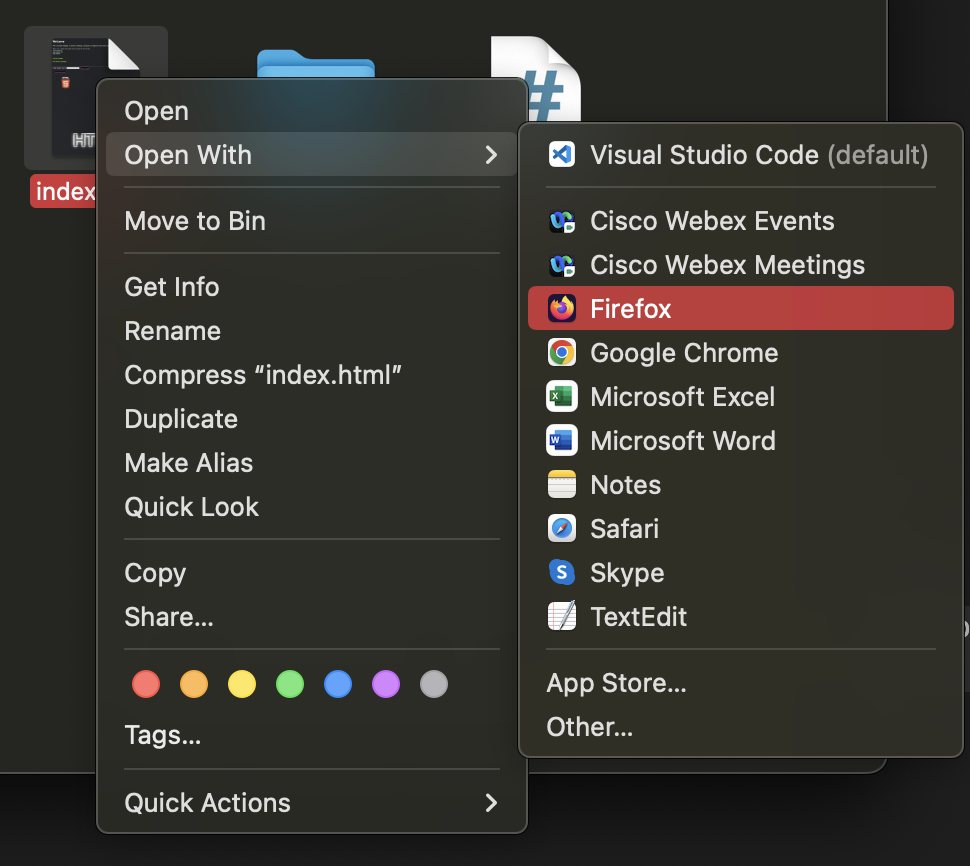
Then save the file as `index.html`. Congratulations, that is your first HTML file ready. To view it in the browser, naviate to the file in your finder/library and open it with a browser of your choice (see below).
{% hint style="info" %}
On most operating systems `.html` files are set to open in your default browser by default; you can change this if you want.
{% endhint %}
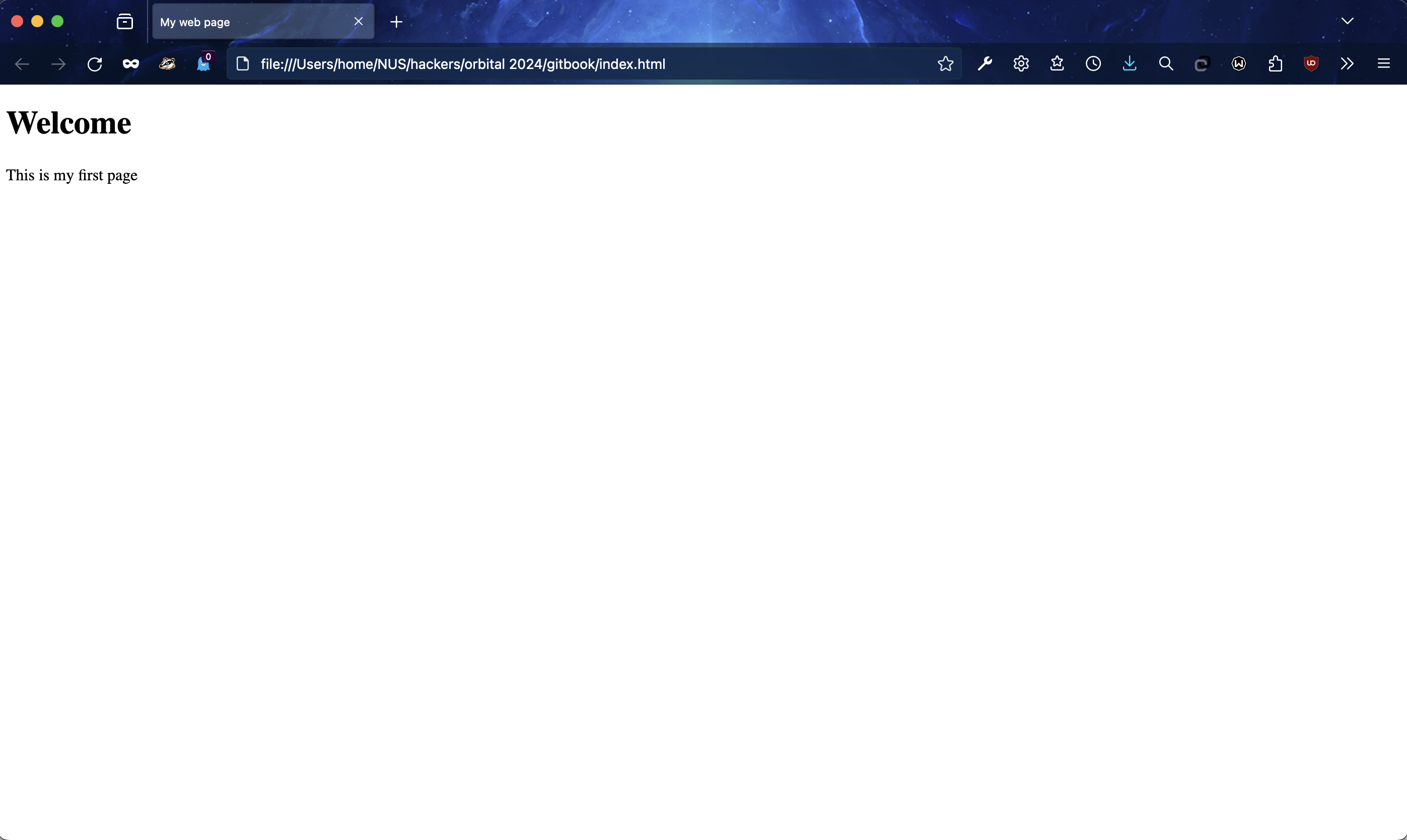
In your browser, you should see something like this:
Now lets see what these tags do.
* `` essentially declares to the browser that the document is an HTML file. It's not necessary, but helpful.
* The `` tag contains the entire contents of the page between its opening and closing tags.
* The `` tag contains meta information about the page, as well as imported scripts and stylesheets. Here it also contains the `` tag:
* The `<title>` tag defines the title of the page, which is the text that appears on the tab in the browser.
* The `<body>` tag contains the body of the page, including text, forms, images and more.
* The `<h1>` tag defines a heading. It can range from 1 to 6, with 1 being the largest size and 6 being the smallest size heading
* The `<p>` tag defines a paragraph of normal-sized text. Note that it is possible to place the text on its own without a `<p>` tag and it will still render as a paragraph.
## More tags
Let's take a look at some more tags:
* The `<div>` tag is a paired tag that is often used to create a generic element that may or may not contain text.
* The `<a>` tag is a paired tag that is used for hyperlinks (a stands for anchor).
* The `<button>` tag is a paired tag that is used to create a clickable button.
* The `<form>` tag is a paired tag that is used to create an HTML form. We'll see more of these later.
* The `<hr>` tag is an unpaired tag that is used to create a horizontal line on the page
* The `<br>` tag is an unpaired tag used to denote a line break.
* The `<img>` tag is an unpaired tag used to embed images on a page.
* The `<input>` tag is an unpaired tag used to create an input field inside the form.
* The `<link>` tag is an unpaired tag used to import files (usually stylesheets).
* The `<script>` tag is a paired tag that can be used to embed/import JavaScript code into the page.
We'll end up using all of these tags throughout the guide, so make sure to keep them in mind. A full list of HTML tags can be found [here](https://www.w3schools.com/tags/).
{% hint style="info" %}
Comments in HTML files can be denoted by `<!-- put comment here -->`. It can be extended to multiple lines as needed.
{% endhint %}
{% hint style="info" %}
Spaces between tags and empty lines are ignored by the browser when rendering HTML.
{% endhint %}
{% hint style="info" %}
As you have seen, tags can be nested within one another.
{% endhint %}
## Next steps
Next, we'll take a look at tag attributes and how they can be used to give properties to elements.